
Zapier connects SolidNexus to many apps using triggers and actions to automate work between SolidNexus and other apps. For example, when there's a new contact in SolidNexus (trigger), you can add the contact to Salesforce CRM (action) using Zapier.
The Zapier integration within SolidNexus is available to all SolidNexus customers, including a free tier. The integration requires a Zapier account, and certain apps integrated with Zapier may require a paid Zapier subscription. Review Zapier's pricing page for more information.
Salesforce & Zapier
Zapier’s Salesforce integration works through connections called Zaps which automate workflows by doing tedious and repetitive tasks for you.
To start working on Zapier platform, visit Zapier website, then:
- Click Log in to sign into your existing Zapier account, or Sign up to create a new Zapier account.
- To complete the integration setup, create your first Zap.
Create a Zap
Log in to your Zapier account.
In the upper left, click MAKE A ZAP
First, select the app you want to use for your trigger .
- You want SolidNexus to trigger an action in Salesforce app, so select SolidNexus.
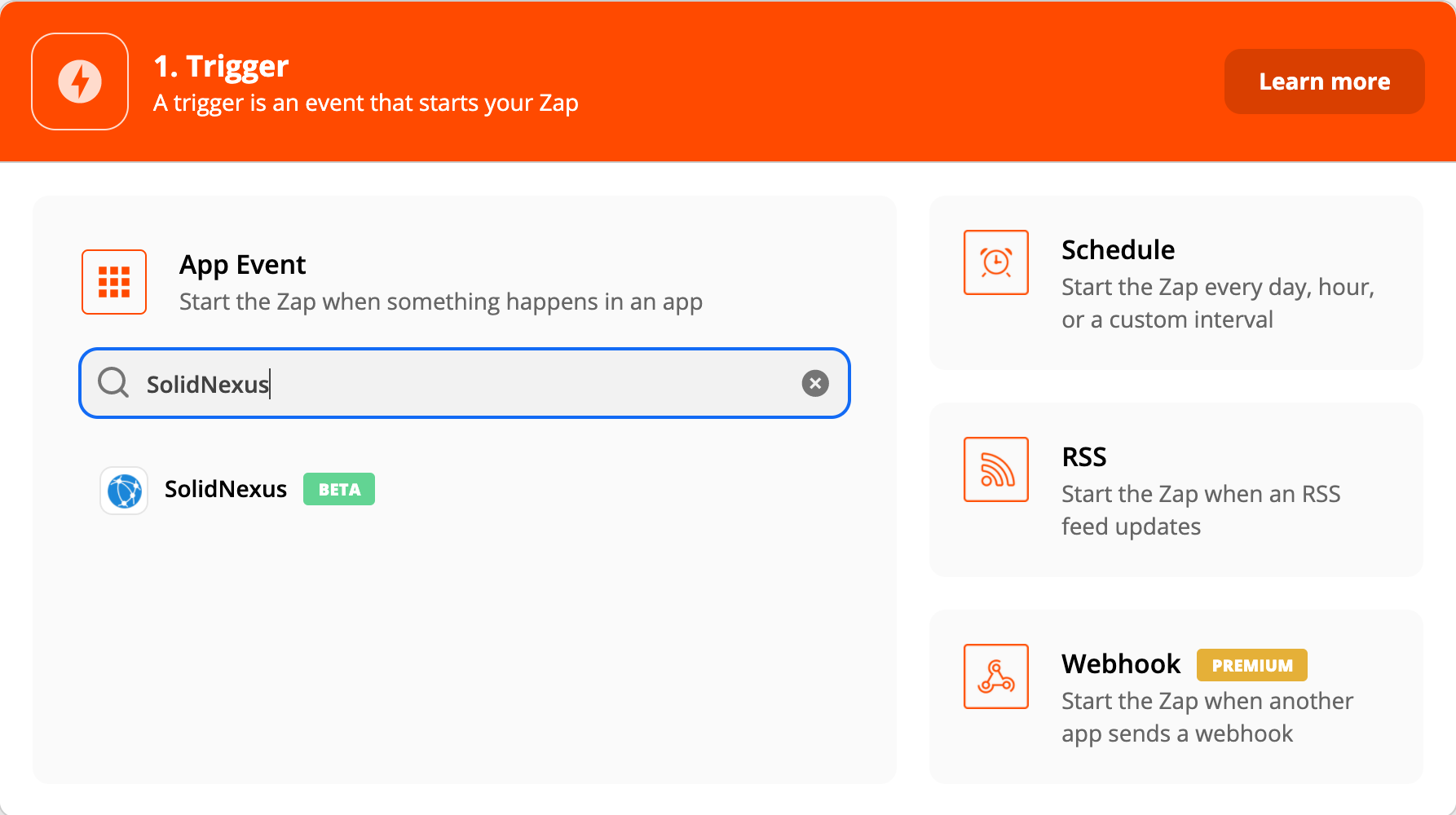
- You want SolidNexus to trigger an action in Salesforce app, so select SolidNexus.
Next, select New Contact in Choose an event dropdown menu, then click Continue.
- If you're using SolidNexus for your trigger and have never connected your Zapier account to SolidNexus, you'll be prompted to connect your SolidNexus account. Then, click Continue.
Once connected, you'll be prompted to test your trigger, then click Continue.
Select the app you want to use for your action.
- You want to find exsisting Salesforce Account (action), so select Salesforce
Next, select Find Record in Choose an event dropdown menu, then click Continue.
- If you have never connected your Zapier account to Saleforce before, you'll be prompted to connect your Salesforce account. Then, click Continue.
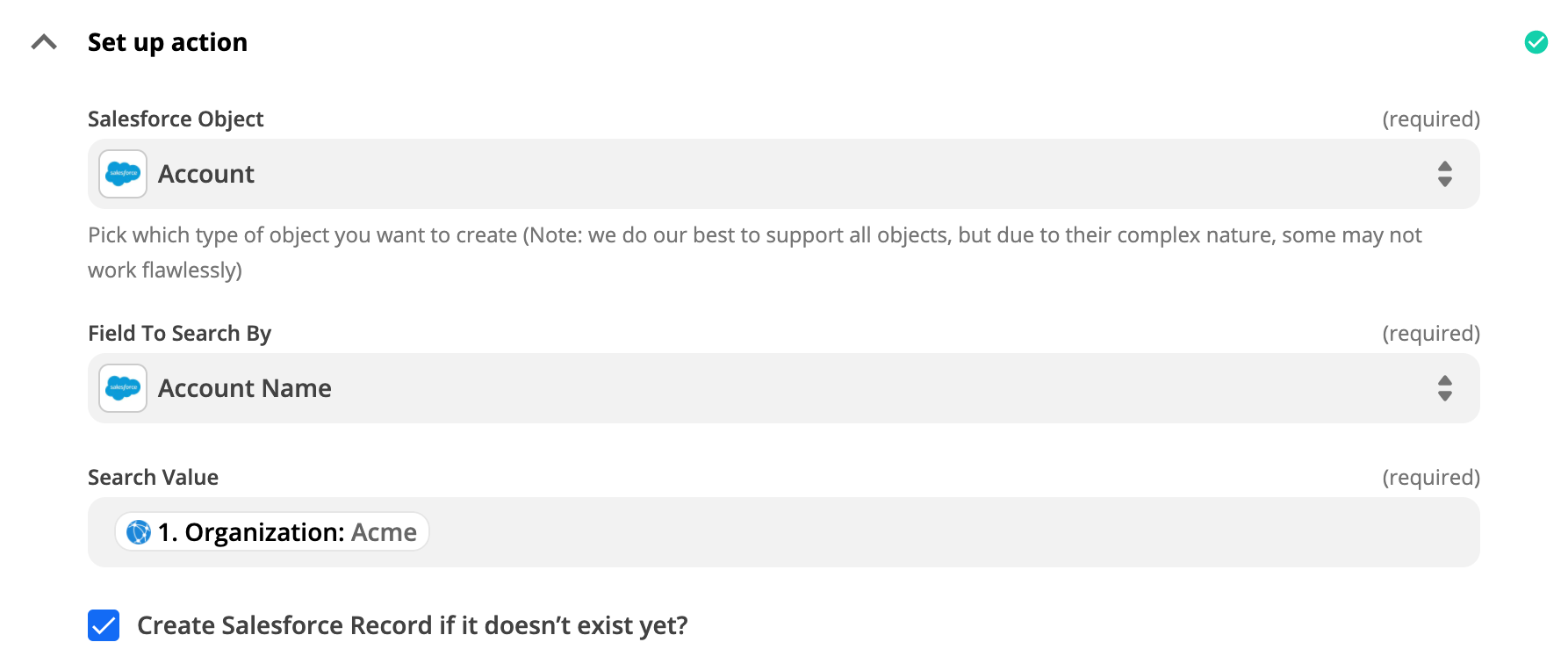
Next, you'll be promted to set up your action:
- Select Account in Salesforce Object dropdown menu.
- Select Account Name in Field To Search By dropdown menu.
- Select Organization in Search Value dropdown menu.
- Check the checkbox Create Salesforce Record if it doesn’t exist yet?
Next, do the mapping between Salesforce Account object and SolidNexus fields.
- the mapping might look like this:
Salesforce: Account SolidNexus Account Name Organization Billing Street Address Street Billing City Address City Billing State/Province Address State Billing Zip/Postal Code Address Postal Code Billing Country Address Country Or Region Account Phone Main phone Account Fax Business Fax Website Website After the mapping step, you'll be prompted to test your action, then click Continue.
Next, create another action by clicking a PLUS sign below the last action.
Select the app you want to use for your action.
- You want to add a new SolidNexus contact to Salesforce (action), so select Salesforce
Next, select Create Record in Choose an event dropdown menu, then click Continue.
- You'll be prompted to connect your Salesforce account. Then, click Continue.
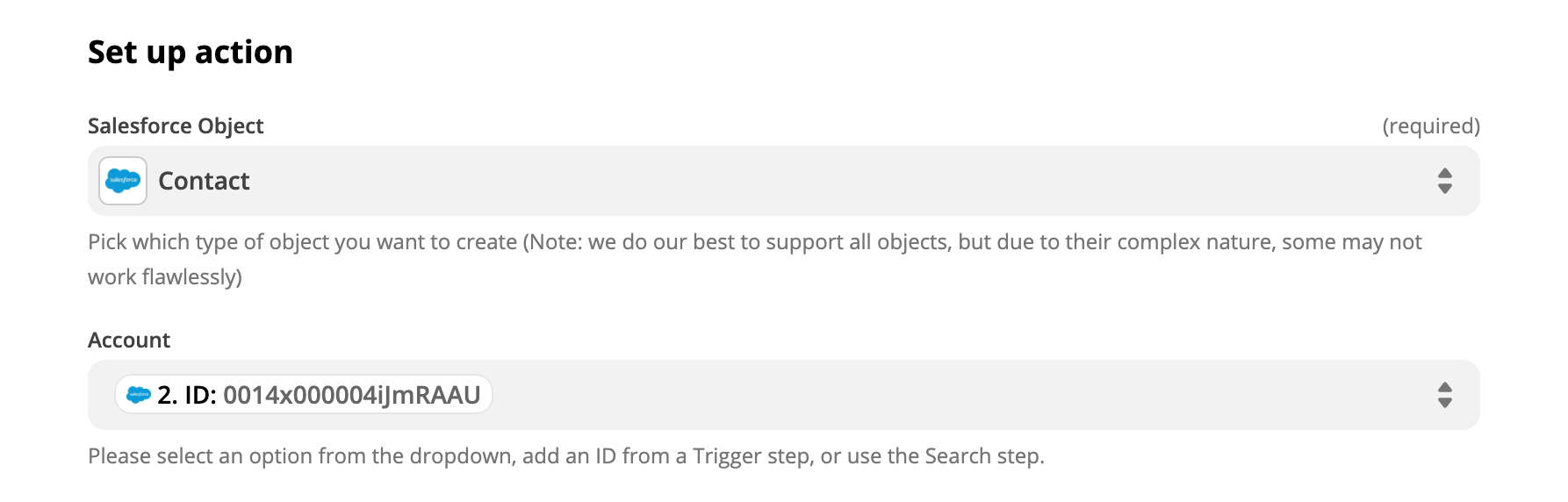
Next, you'll be promted to set up your action:
- Select Contact in Salesforce Object dropdown menu.
- Select Find or Create Record In Salesforce: ID in Account dropdown menu.
Next, do the mapping between Salesforce Contact object and SolidNexus fields, add more fields as desired.
Salesforce: Contact SolidNexus Email New Contact In SolidNexus: Email Last Name New Contact In SolidNexus: Last Name First Name New Contact In SolidNexus: First Name Title New Contact In SolidNexus: Job Title Mobile Phone New Contact In SolidNexus: Mobile Phone Home Phone New Contact In SolidNexus: Home Phone Contact Description New Contact In SolidNexus: Personal Notes - After the mapping step, you'll be prompted to test your action, then click Continue.
- Finally, name your Zap and enable it to receive events from SolidNexus.